Schedule
Schedule management is available to Ops Supervisors and administrators only
Birdbook offers the ability for Ops Supervisors and administrators to import or otherwise create a schedule. Creating a schedule will display the selected aircraft on the mission board with their write-ups in order to display on a kiosk or TV board for stepping aircrews.
Users have the option to choose between a Home or Dislocated schedule type in order to aid in operations occuring both at home and while on TDY.
Getting started
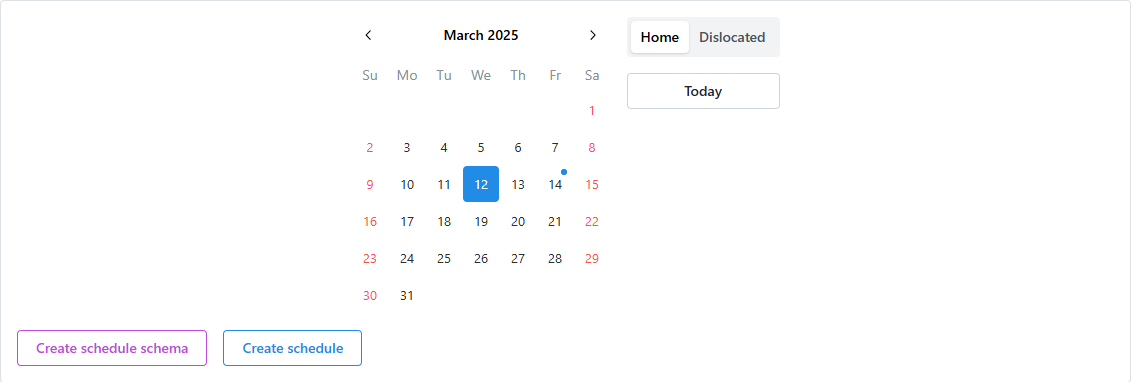
When first visiting the page, the calendar will default to today's date as well as the Home schedule type.
Choose the date you wish to modify and the page will reload.
Days with existing schedule data will have a blue dot.
Creating schedules
There are two ways to create a schedule, the first and easiest method is to import the scheduling information from an Excel export of your squadron's scheduling program. Or users can manually create the schedule.
Importing a schedule
Integrations
The following scheduling programs have been integrated with Birdbook:
- G/TIMS
- Gonkulator
If you use a scheduling program that is not already integrated and would like to use it with the Birdbook, please get in touch with us so we can incorporate your scheduling solution into the Birdbook.
Creating a schedule schema
In order to effectively create a schedule from an imported file, the system needs to know where the appropriate data columns are.
Click on the Create schedule schema to open a File selection dialog window. Navigate to where the exported Excel file exists and open it. This will import the schedule and start reading the header column information.
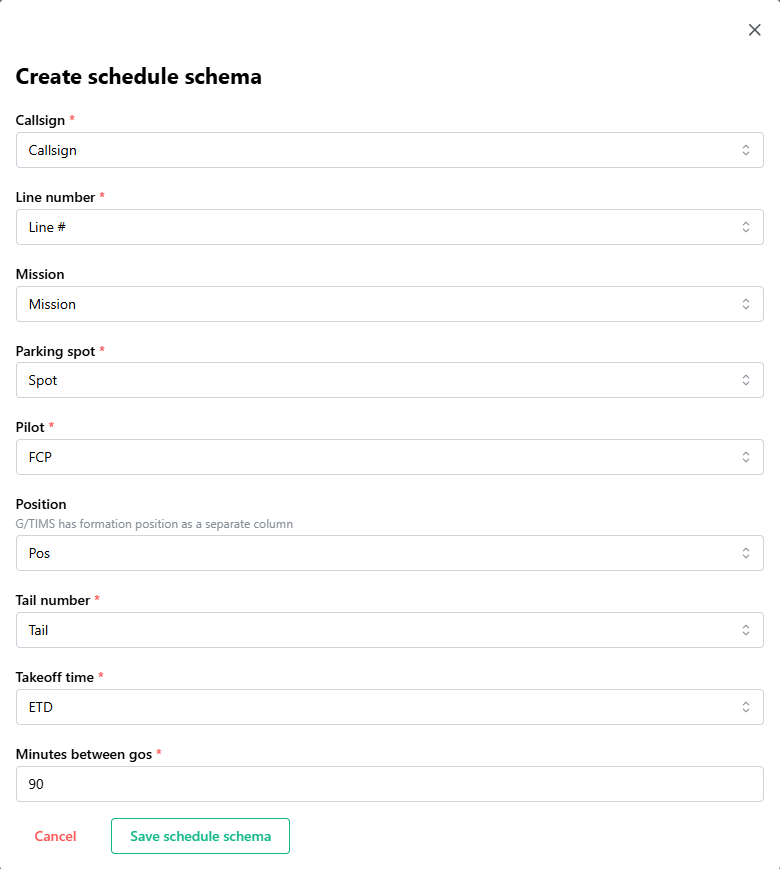
Currently, the schedule looks for specific column names that could be the potential data source for the expected data field. However, if necessary, use the dropdown menu to select the correct data column header.
Takeoff time is necessary to determine the time between gos in order to appropriately separate the schedule into Gos.
Once complete, click the Save schedule schema button to return to the schedule page.
Some versions of G/TIMS separate the position number from the callsign. If this is the case, ensure you select the position column.
Importing
Now that a schedule schema exists, click the Import schedule button to select your schedule and read the data into the system.
Manually creating a schedule
To manually create a schedule, click the Create schedule button.
Input the turn scheme for the day by entering the lines per go separated by a space, then click the Create schedule button.
Follow the modifying schedules below instructions to proceed.
Modifying schedules
Updating Gos
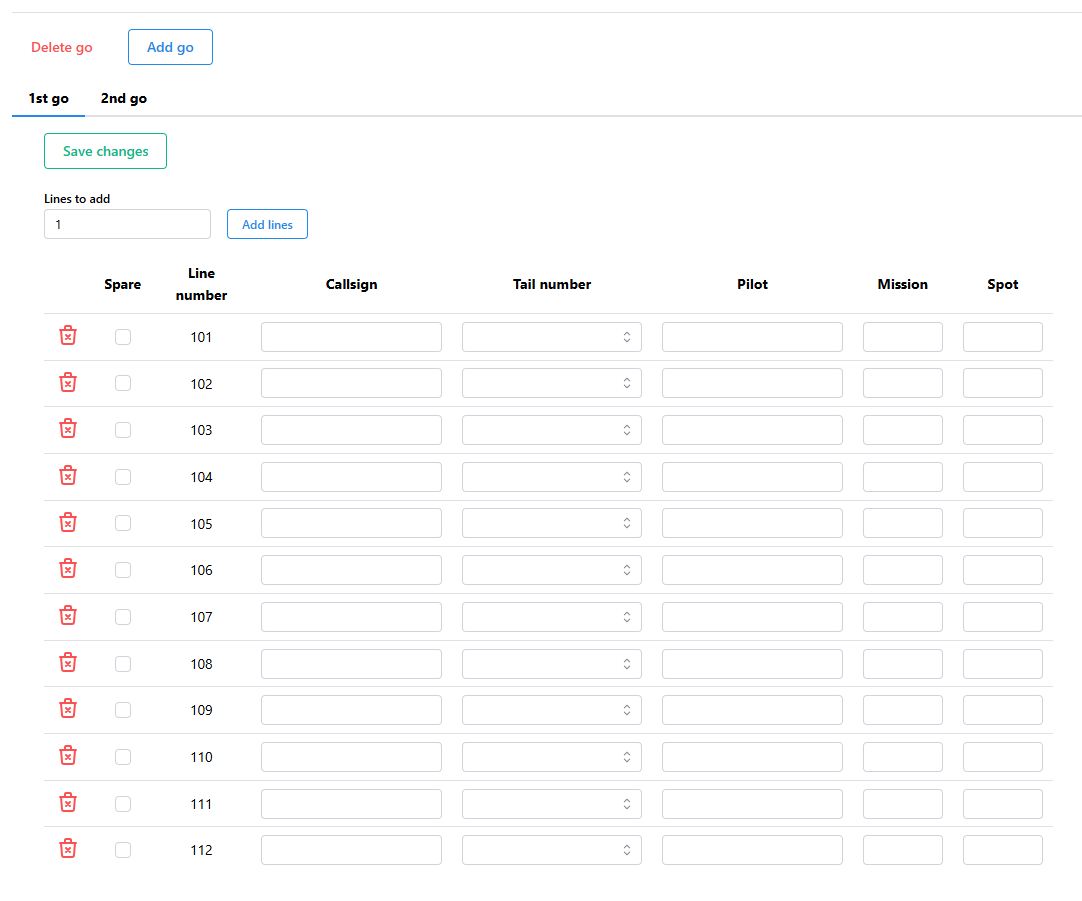
At the top of the screen, users can add gos or delete the currently selected go. Select the appropriate tab to view / modify lines within that go.
Adding lines
Above the schedule is a field to add lines at the end of the go. Type the number of lines to add and click the Add lines button.
Updating lines
Each line is represented by a row within the schedule table. Fill the appropriate information into the form to update the line information.
If a tail is already selected for the go, it will be unable to be selected a second time.
Designating a line as a spare will remove all line information except for the tail number and disable those input fields. This feature allows Ops Supervisors to display Birdbook information about spares on the mission board, as desired.
The schedule does not automatically save when navigating between Gos, days, or other pages. Make sure you save your changes using the Save changes button at the top of the go. There will be a flashing indicator on the button if any changes have occurred.