Mission board
The mission board is available to Ops Supervisors and administrators only.
The mission board allows Ops Supervisors to pull up the schedule information on a large TV screen at the operations desk to display quick information for stepping aircrews.
Board options
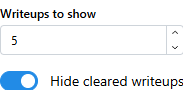
To the right of the calendar picker is a group of options for the mission board:
| Option | Description |
|---|---|
| Writeups to show | The number of write-ups to display for each line, to include any pinned write-ups. |
| Hide cleared writeups | Allows users to display archived writeups, if desired. |
Line data
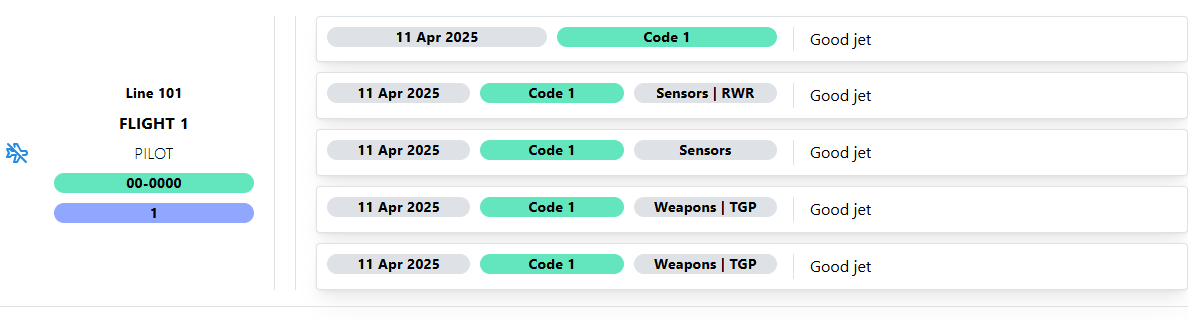
Line information is displayed for each jet that has been added to the schedule. The number of write-ups that are shown are dictated by the value of the board option.
To the left of the line information is a small icon. This allows Ops Supervisors to "Execute" the line and display the parking spot, or to hide the parking spot, as desired. See the board preferences page to see how to set defaults.
Lines will be displayed in three primary sections:
| Line information | Information about the line number, flight callsign, pilot, tail number, and parking spot. |
| Aircraft attributes | Administrator designated aircraft attributes will be displayed. |
| Write-ups | A list of all write-ups, in reverse chronological order. |
TV Mode
Click the Cast icon in the bottom right of the screen to display the page in TV mode. This will also hide the calendar and options section.
While in TV mode, a Refresh icon will be displayed to easily refresh the page while remaining in TV mode.
Users may know the keyboard shortcut to make a window full screen. However, doing so will not hide the calendar / options area nor display the refresh button. Similarly, if exiting the TV mode via the keyboard (F11 or ESC), the TV mode will not appropriately turn off, leaving the calendar and options hidden.
This is a known bug that is currently being investigated.