Aircraft management
The aircraft management page is available to administrators only.
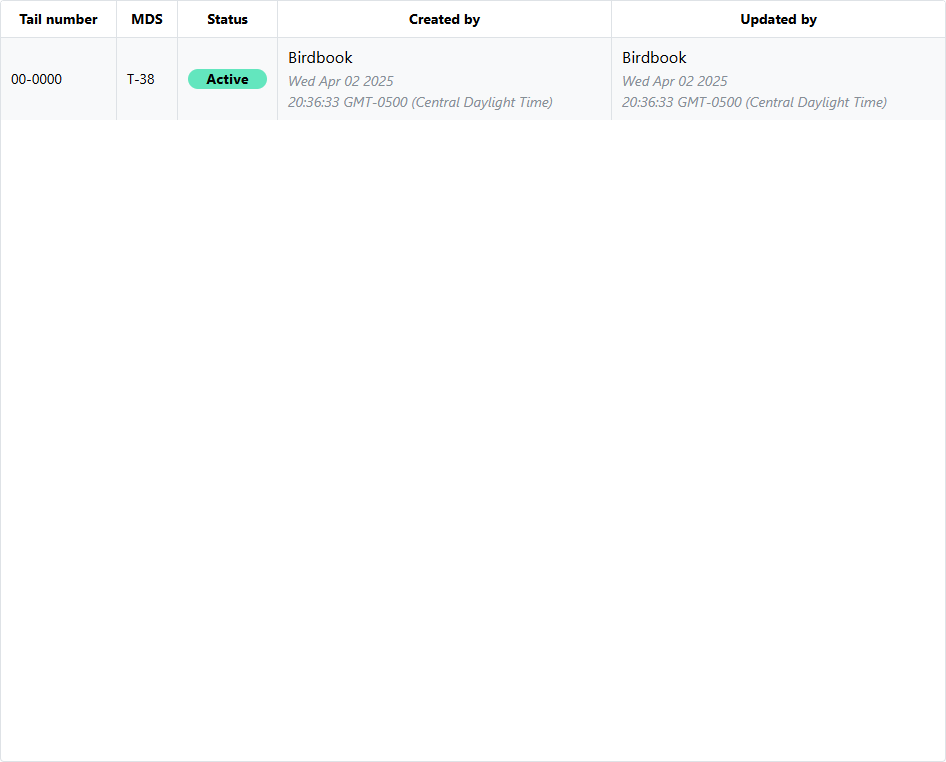
Information about individual aircraft that have either been created or transferred to the organization are displayed in the aircraft table.
Creating aircraft
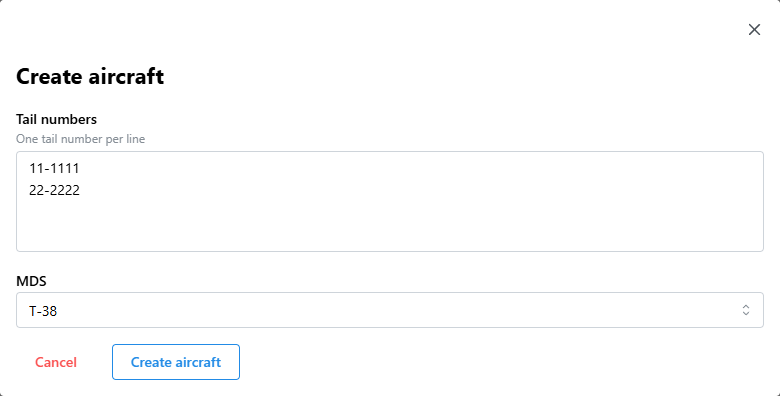
To create additional aircraft, click the Create aircraft button below the aircraft table. This will open the Create aircraft dialog window which will allow the administrator to add multiple tails to their organization.
When creating multiple tails, ensure each tail number is on its own line within the text area (as shown).
Select the MDS which will be applied to each of these aircraft.
If you have a specific MDS or model which you would like to be added to the list, please email us at support.birdbook@tfinnovations.com so we may add it to the list.
Aircraft default to the U.S. nationality. If your organization operates aircraft from partner nations, this may be modified on an individual basis.
The MDS - Tail number relationship must be unique within the system. This means, by the shown example, that only one T-38 with tail number 00-0000 may exist. If, for some reason you receive an error that the tail number is unable to be created, please ensure you have properly input the tail number. Otherwise it may have already been created by another organization, or may reside within "The Boneyard". Please email support.birdbook@tfinnovations.com if you need asssistance.
If an aircraft is in "The Boneyard" and you wish to re-activate it without any of the applicable data, please include that request in your email.
Modifying aircraft
Click the row of the aircraft for which you would like to view information about.
Aircraft details
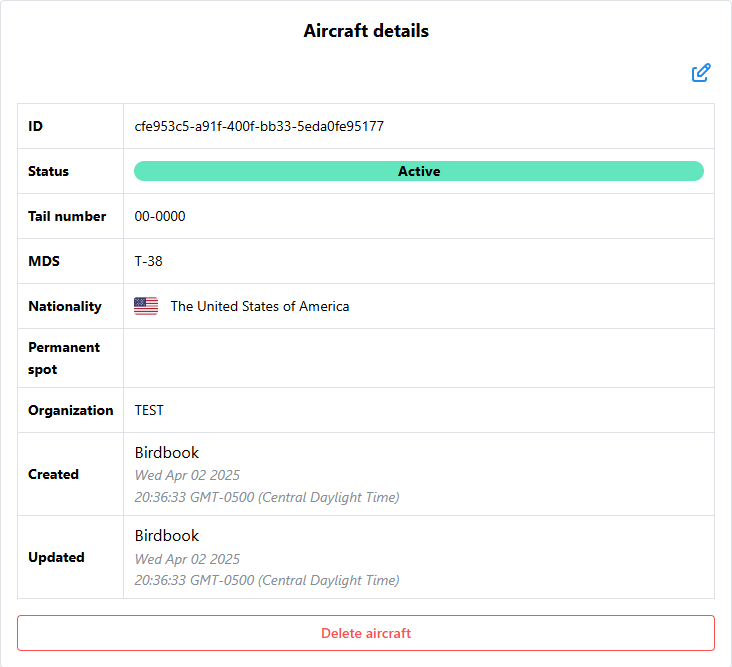
In the left section, aircraft information is displayed. To modify aircraft information, click the blue Edit button in the top right of the section. The following information may be modified:
| Field | Required | Description |
|---|---|---|
| Status | ✅ | The status of the aircraft. Archived aircraft are still owned by the organization, but will not be displayed or selectable in any of the pages. |
| Tail number | ✅ | The tail number of the aircraft. |
| MDS | ✅ | The aircraft MDS. |
| Nationality | ✅ | The aircraft's nationality. |
| Permanent spot | ❌ | If aircraft do not typically move, the permanent spot may be added to the aircraft. |
Click the Save changes button to save your changes.
Deleting aircraft
Clicking the Delete aircraft button will open a confirmation dialog to ensure you wish to take this action.
You must type DELETE (case sensitive) to confirm your action.
When aircraft are deleted, they remain within the Birdbook system but are not assigned to any organization,
nicknamed "The Boneyard." This allows any information or write-ups to be retained in case of re-activation.
If you desire to delete the aircraft and all associated information, please email us at support.birdbook@tfinnovations.com to fully delete the aircraft and any associated data attached to the aircraft.
Aircraft attributes
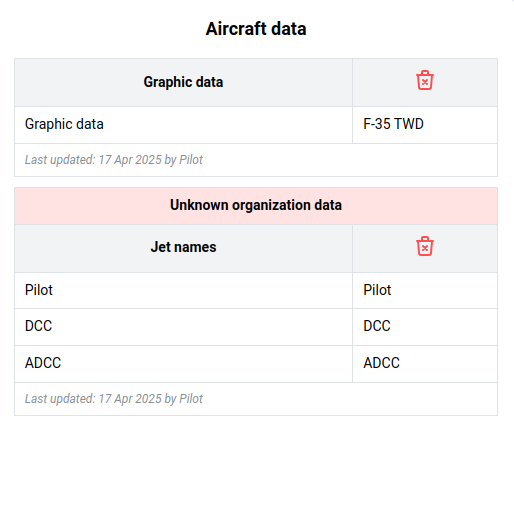
The aircraft attribute section allows administrators to see what data, if any is associated with the aircraft.
This does not allow the administrator to edit the attributes.
Deleting attributes
To delete attribute data, click the red Delete icon in the top right portion of the associated data. This will open a confirmation dialog to confirm the action.
Unknown data
If attributes are associated with the aircraft that does not match any current organizational aircraft attribute, a red banner stating Unknown organization data will be displayed.
This may occur if the organization has removed or changed attributes. It may also occur if an aircraft is transferred from a different organization.
Aircraft write-ups
The aircraft write-up section is not currently used