Organization management
The organization management page is available to administrators only.
Administrators are able to update various aspects of an organization.
Organization details
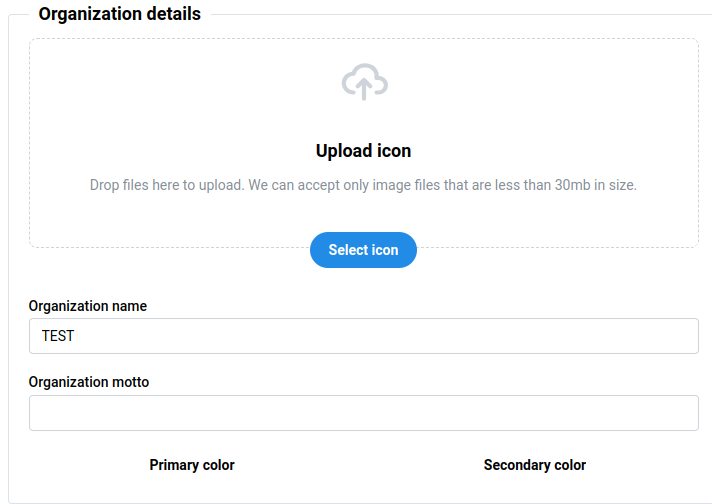
Icon
The icon helps to identify the organization by display an icon in the left section of the top navigation. This can be any image associated with the organization, such as a logo or patch.
Click the button to open a file browser to navigate to and select the desired file. The file can also be dragged and dropped into the dropzone to upload it.
Acceptable files include: .png, .gif, .jpeg, .svg, .webp, .avif, .heic, and .heif.
File sizes must be less than 30 MB in size
Organization name
Use this field to update the name of the organization.
The organization name is displayed in front of Birdbook in the left section of the top navigation.
Organization motto
If desired, administrators are able to add an organization motto or saying associated with the organization.
Schedule preferences
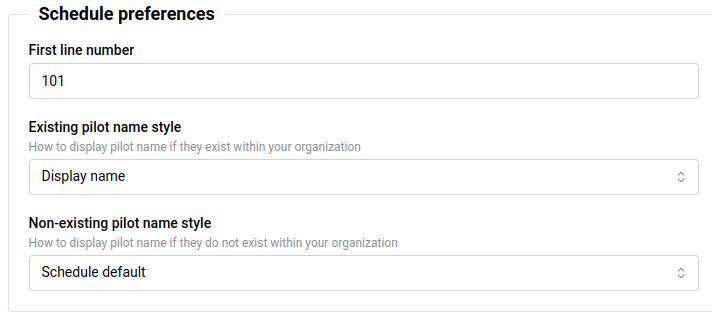
First line number
When manually creating a schedule, this value will be used to start the numbering of schedule lines.
Existing / Non-existing pilot name style
When importing a schedule, the system will determine if a name on the schedule matches the name of any account within the Birdbook that is attached to the organization.
If a user account is found, the Existing pilot name style will be used to display the pilot's name. Otherwise, the Non-existing pilot name style will be used.
| Option | Description |
|---|---|
| Display name | The user's chosen display name. |
| First name | The user's first name. |
| Full name | The user's full name. |
| Last name | The user's last name. |
| Schedule default | No modification to the imported schedule. |
Write-up preferences

Default write-up
This allows administrators to change the default text that is associated with a write-up if a user creates a new write-up for an aircraft without any narrative. This field may be left empty to leave the narrative blank, if desired.
Saving changes
Data is not saved automatically, click the green Save changes button at the bottom of the form to save changes.