Survey management
The survey management page is available to administrators only.
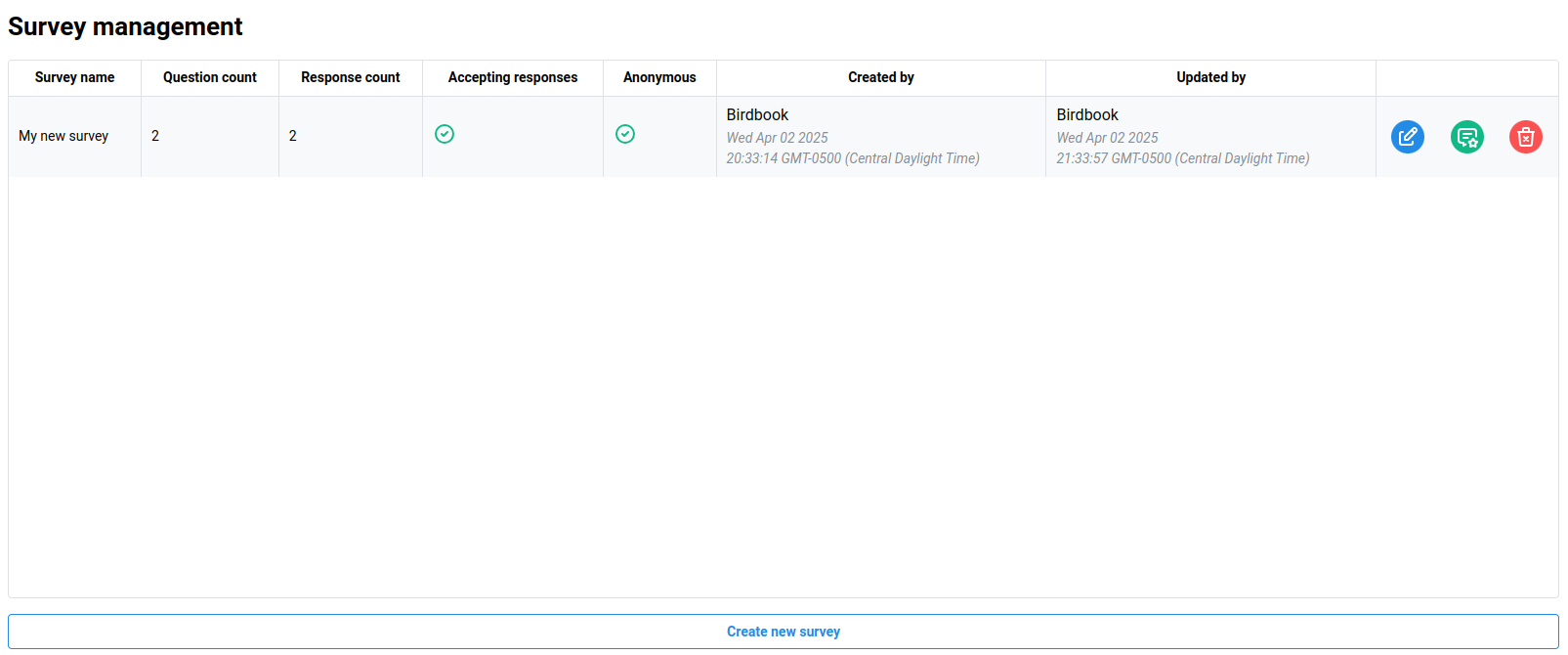
Surveys allow administrators to add additional small questionnaires to aircraft for users to complete.
Creating a survey

Click the blue Create new survey button to create a new survey. In the new screen, the user will be presented with multiple fields to create the survey.
| Field | Description |
|---|---|
| Survey name | The name of the survey. |
| Survey description | A small description of what the goal of the survey is. |
| Accepting responses | Toggle whether the survey is accepting responses. |
| Anonymous survey | Toggle whether to collect pilot name or not. |
Survey questions
Click the blue Add question button to add a new question to the survey. Clicking on the question will highlight it gray which displays the questions properties.
| Field | Description |
|---|---|
| Question | The question being asked. |
| Description | Any clarifying information for the question. |
| Answer type | The type of answer offered. |
| Behavior on yes | The action taken when the user clicks Yes |
| Behavior on no | The action taken when the user clicks No |
| Behavior when done | (Text answer only) The action taken when the user is complete with their narrative. |
Saving
Data is not saved automatically. Click the blue Save changes button to save the survey.
Modifying surveys
Click the blue Edit button to modify the survey. This will open the same survey window allowing the administrator to edit the survey.
Questions are saved as individual entities within the Birdbook. This means if you update a question in the survey, any previous responses to the question may no longer match the question.
Viewing responses
Click the green View responses icon to view responses to the survey.
Yes / No questions are displayed as a pie chart. Hovering over the chart will display the individual count of each answer.
Text questions will display a blue View responses button. Clicking this button will open a dialog list of all the text responses
Exporting responses
To export responses, click the green Export responses to Excel button. This will download an Excel (.xlsx) file with the survey responses.
Each response will be on its own row and will include the responder's name, date of response, associated tail number, and individual questions and responses.
Deleting surveys
When a survey is no longer needed, click the red Delete icon to delete the survey. This will open a confirmation dialog to confrim the action.