Aircraft attributes
The aircraft attribute page is available to administrators only.
Aircraft attributes are snippets of data that can be added to an aircraft. These attributes may vary organization to organization in terms of what information is desired to be tracked. Examples include:
- Software version updates
- Jet names
- Configuration
- Displays / Boresights
Data groups
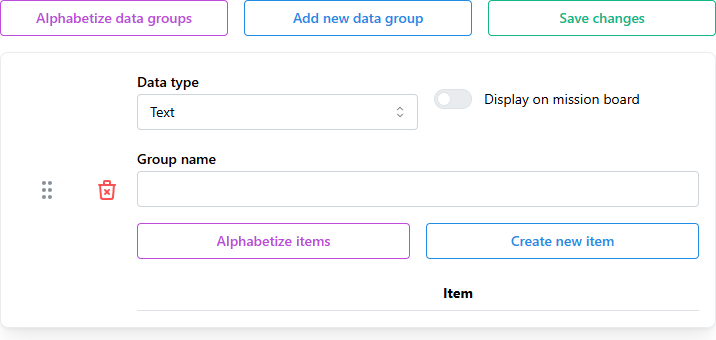
Data groups are simply a table which contains the fields for aircraft attributes.
Creating a data group
Click the blue Add new data group to create one. The Group name is a required field which is the title of the attribute group.
Group names must be unique.
Data group types
There are a few data types that are available:
| Type | Description |
|---|---|
| Text | Attribute accepts free-form text information. |
| Checkbox | Attribute accepts true/false information. |
| Graphic | Attribute displays a graphic which users may update. |
If you have a graphic which you would like to use, please email us at support.birdbook@tfinnovations.com and our team can work with you to create an editable graphic.
Display on mission board
If you desire the data group to be displayed on the mission board, toggle the switch to then display it.
Deleting data groups
Click the red Delete icon to delete the data group and all its attribute information.
Re-ordering data groups
Data groups are displayed, by default, in the order which they were created. Click and drag the handle (gray dots) to re-order the data groups. You can also click the purple Alphabetize data groups button to automatically display groups alphabetically.
Data group attributes
Attributes within the group are the various data points that are related and accept user input.
Creating attributes
Click the blue Create new item button to add a data attribute point.
On occasion, if a true/false attribute is true, it may be considered a negative data point. In this case, use the Checked is good checkbox to annotate whether a true answer should display as a ✅ or ❌.
Deleting attributes
Attributes can be deleted by using the red Delete icon next to the attribute.
Re-ordering attributes
Attributes are displayed, by default, in the order which they were created. Click and drag the handle (gray dots) to re-order the attributes. You can also click the purple Alphabetize items button to automatically display items alphabetically.
Saving data
Data is not saved automatically, ensure you save your changes by clicking the green Save changes button at the top of the screen.
Action icons

If enough attributes are created which causes the window to scroll, the following icons will be displayed in the lower right portion of the screen. This allows for quick actions, such as creating new groups, or saving changes without the need to scroll to the top of the screen.